Google Business Profile Setup: A UK Step-by-Step Checklist
To set up a Google Business Profile, create and claim the listing with your real business name, choose the right primary category, add an accurate address or service area, hours, phone and website, upload real photos, list your services, and complete verification. Then ask customers for honest reviews, keep details consistent elsewhere online, and review the profile every month.

Contents
- Before you start
- Step 1: Create or claim the profile
- Step 2: Core details
- Step 3: Categories and services
- Step 4: Description
- Step 5: Photos
- Step 6: Verify
- Step 7: Reviews
- Step 8: Keep everything consistent
- Monthly checklist
- Common setup mistakes
- How we can help
- Frequently asked questions
- Sources
Before you start
- Your real business name, exactly as on your signage and paperwork.
- A real address, or a decision to hide it and list the areas you serve. See service-area businesses on Google.
- A phone number and website address that work.
- A business email address that you control.
- Photos of your premises, work and team.
- A search for existing listings, so you do not create a duplicate.
Step 1: Create or claim the profile
Search for your business on Google and Maps. If a listing exists, claim it rather than adding a new one. If none exists, create one from your Google account, using a business email you control, so that you hold the owner role. If someone else already owns it, see how to regain control.
Step 2: Core details
- Name: the real-world name only. Do not add services or places, such as Best Plumber Near Me, which is a common cause of suspension.
- Address: a real location with a permanent presence. Never use a virtual office, PO box or coworking desk without permanent staff.
- Phone and website: the numbers and page customers should use.
- Opening hours: accurate regular hours, and special hours for holidays.
Step 3: Categories and services
Choose the most specific primary category that matches what you do, then add secondary categories only where they are true. List each service you offer with a short, plain description, and add products if you sell them.
Step 4: Description
A UK guide notes a business description of up to 750 characters. Write it in plain English: who you are, what you do, where, and what makes you different. Do not stuff keywords or add offers that Google’s content rules do not allow.
Step 5: Photos
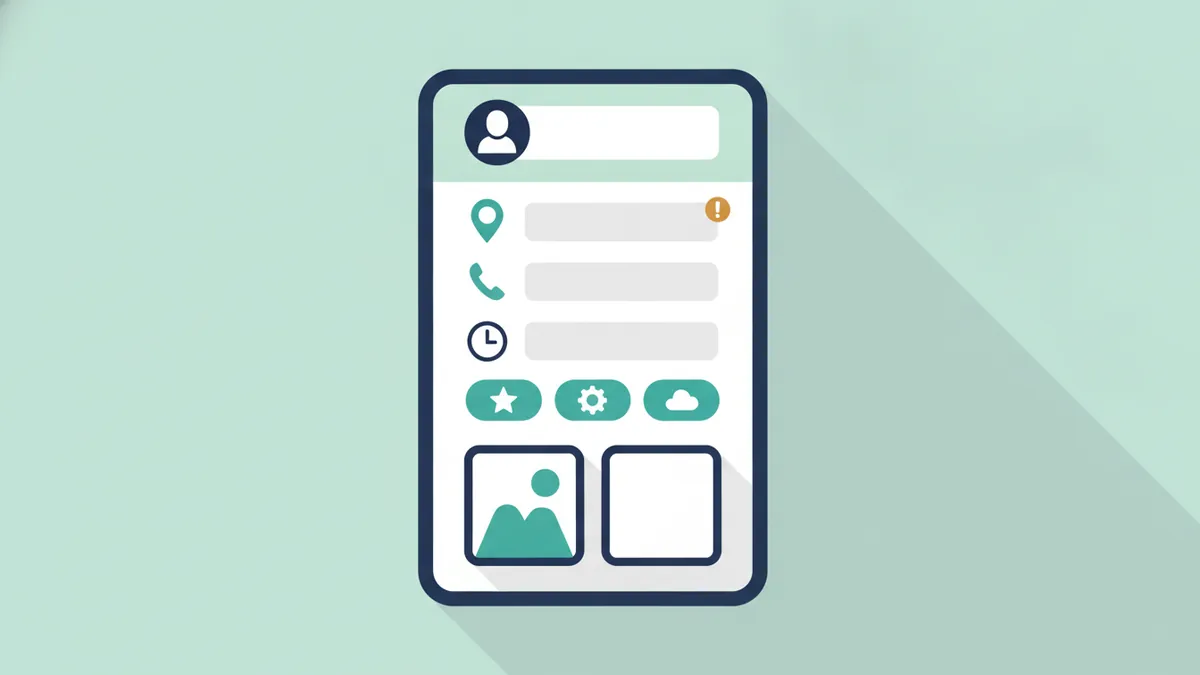
Add a logo, a cover photo, the exterior with signage, the inside, your team and examples of your work. Use real photos only, and add new ones regularly.
Want a second pair of eyes? Clariti Digital can review your setup and show you what to fix first.
Step 6: Verify
Complete the profile before you request verification. Methods such as a postcard, email, phone or video depend on what you are eligible for. If verification fails, see verification failed: causes and fixes, and for video, how to pass video verification.
Step 7: Reviews
Ask every customer for an honest review, give them a direct link, and reply to every review. Never reward reviews. Read the UK rules on review incentives.
Step 8: Keep everything consistent
Use the same name, address and phone on your website, directories and social profiles. Record the master version in one document. See the best UK business directories for where to list next.
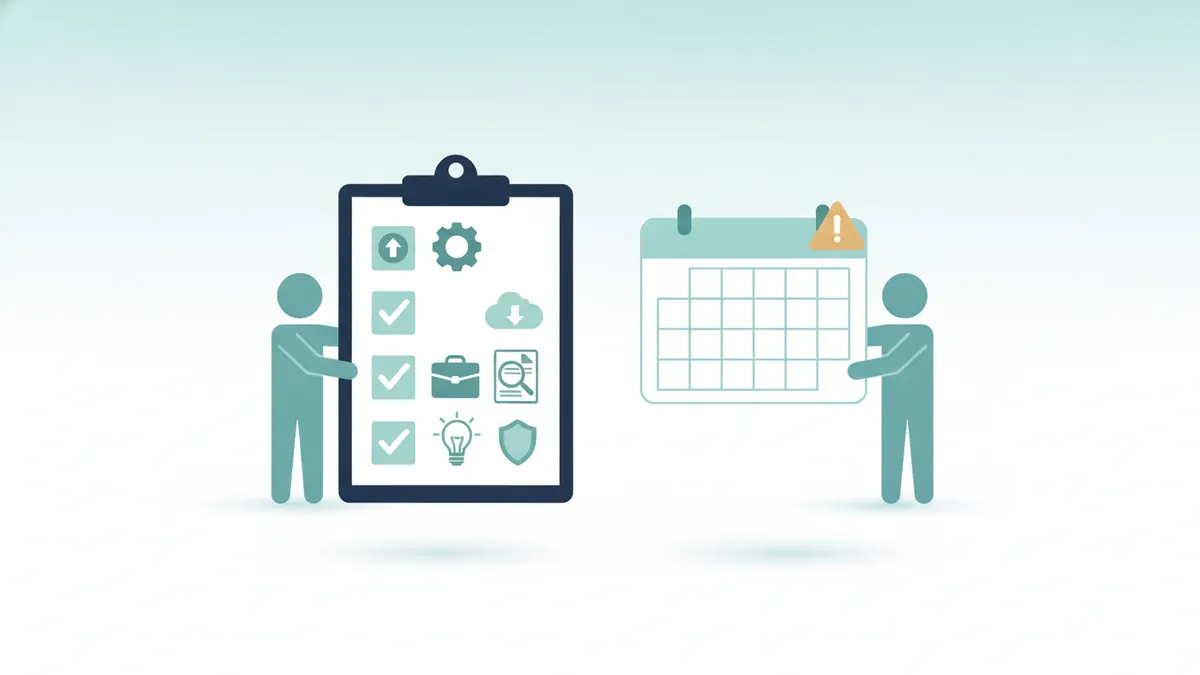
Monthly checklist
- [ ] Check opening hours and special hours are right.
- [ ] Add at least one new real photo.
- [ ] Reply to every new review.
- [ ] Look at profile insights for calls, direction requests and website taps.
- [ ] Check for suggested edits or new duplicates.
- [ ] Check the email linked to the profile for notices from Google.
- [ ] Compare your details with your website and directories.
Common setup mistakes
- A business name with added keywords.
- A virtual office or PO box address.
- A wrong or too broad primary category.
- Missing opening hours or an old phone number.
- Creating a second listing instead of claiming the first.
- Never replying to reviews.
If a mistake has already caused a suspension, see what to do if your profile is suspended.
How we can help
We complete and optimise your profile, choose the right categories and services, add photos and a description, and take you through verification. Setup costs £249 as a one-off, and ongoing profile care is part of every Clariti monthly plan.
Frequently asked questions
How do I set up a Google Business Profile?
Create or claim the listing with your real details, choose the right categories, add hours, services and photos, verify, and then ask for honest reviews. The steps above give the order.
Is a Google Business Profile free?
Creating and managing one is free. Costs arise only if you pay someone to manage it or buy advertising.
Can I run a profile without a shop?
Yes, if you travel to customers, by hiding the address and listing the areas you serve. See service-area businesses on Google.
How long does verification take?
We could not find a published timeframe. It depends on the method Google offers and how quickly you complete it.
How often should I update my profile?
Check it monthly and update hours and photos whenever something changes.
What if my profile gets suspended?
Fix the cause first, then appeal once. See our recovery guide.
Sources
- Cloudswitched, Local SEO: the complete guide for UK small businesses, checked 11 October 2026.
- Synup, Common Google Business Profile issues and how to fix them, checked 11 October 2026.
- Vimm, Why Google Business Profile verification fails and what to do next, checked 11 October 2026.
- Google, Google Business Profile Help, checked 11 October 2026.

Sam, Editor at Clariti Digital.
Related guides
- Verification failed: Why Google Business Profile verification fails and what to try next.
- Service-area business: Address and service-area rules for businesses that travel to customers.
- Best UK business directories: The UK directories that are worth your time.
Need help with this?
Clariti Digital is a UK digital growth agency for established local businesses. We start with a diagnostic, then fix what holds back visibility, enquiries and trust. Call +44 7435 063827 or email sam@claritidigital.com.