Missing GTIN in Merchant Center: What It Means and the Fix
A GTIN is the barcode number that identifies a product, such as an EAN or UPC. Google disapproves products with a missing or incorrect GTIN where one applies, and they will not show in Shopping ads or free listings. Use the manufacturer’s real GTIN, map the field once in your product data, and check Google’s specification before declaring a product has no identifier.

Contents
- What a GTIN is
- Why Google disapproves products
- How to find the right GTIN
- Fix the whole feed at once
- Products without a GTIN
- After you fix it
- Frequently asked questions
- Sources
What a GTIN is
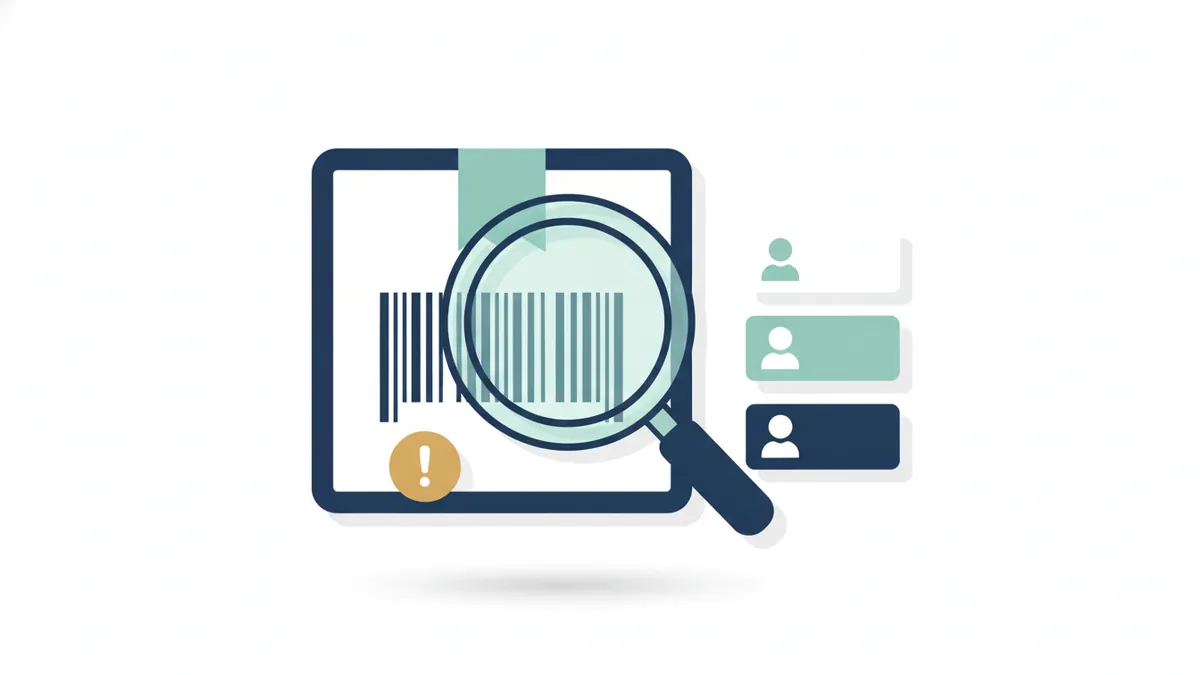
A Global Trade Item Number is the number under a product’s barcode. It lets Google recognise the same product across sellers. In the UK you will usually meet it as an EAN, which is 13 digits, or a UPC.
Why Google disapproves products
Google’s data quality guidance says products with an incorrect or missing GTIN are disapproved and not synced to your account, and that products must have valid unique product identifiers where they apply. Disapproved products do not appear in Shopping ads or free listings. See why products are disapproved for the other common causes.
How to find the right GTIN
- On the product’s packaging, under the barcode.
- On your supplier’s price list, data sheet or portal.
- From the manufacturer or brand owner.
- Never invent, copy from a different product or reuse one number across products.
Want a second pair of eyes? Clariti Digital can review your setup and show you what to fix first.
Fix the whole feed at once
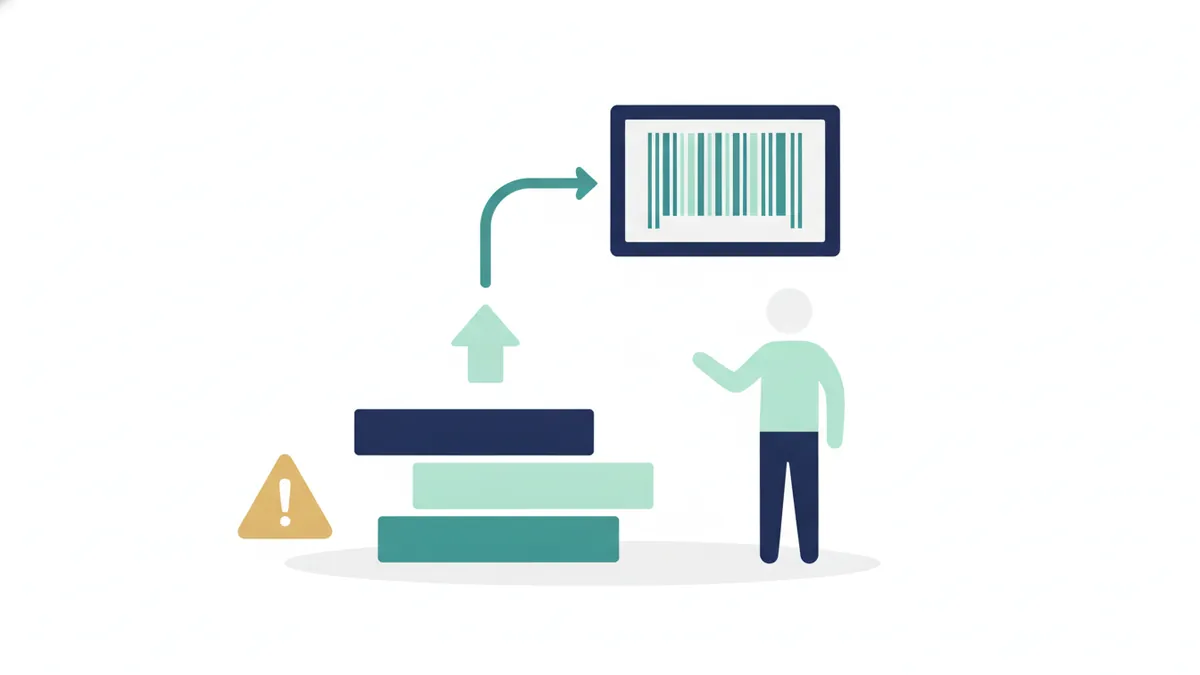
Fixing GTINs product by product is slow. Fix the rule that creates the error.
- In Merchant Center, filter products by the GTIN issue and export the list.
- Check where the number is stored in your shop or product data: a dedicated field, a custom field or a supplier file.
- Map that field to GTIN in your feed settings, once, so one change corrects every product.
- Add missing numbers from your supplier data in bulk.
- Update the feed, and let Google re-review the products.
- Check Diagnostics for products that remain.
Products without a GTIN
Some products, such as custom, handmade or own-brand items, do not have a manufacturer’s GTIN. Google’s product data specification says not to submit a GTIN for a product that does not have one. Check the specification for your category before relying on this, and never make up a number.
After you fix it
Google re-reviews products after you update the feed. We could not find a published guaranteed timeframe, so check Diagnostics rather than expecting a date. For setting up the rest, see Google Merchant Center setup for UK sellers, and for another common error, how to fix a price mismatch.
Frequently asked questions
What is a GTIN?
The barcode number that identifies a product, such as an EAN or UPC.
Do I need a GTIN for every product?
Where one exists for the product, Google expects the correct one. Check the specification for products without a manufacturer GTIN.
Where do I find a GTIN?
On the packaging under the barcode, on supplier data or from the manufacturer.
Can I make up a GTIN?
No. An invalid or reused number causes disapprovals and can risk your account.
How do I fix hundreds of products?
Map the GTIN field once in your feed settings and add missing numbers in bulk from supplier data.
Sources
- Google, Fixing Merchant Center disapprovals for product data quality violations, checked 11 October 2026.
- AdTribes, How to fix disapproved products in Google Merchant Center, checked 11 October 2026.
- Channable, Google Merchant Center disapproved products: 7 causes and fixes, checked 11 October 2026.

Sam, Editor at Clariti Digital.
Related guides
- Merchant Center products disapproved: Common causes of disapproved products and how to fix them.
- Google Merchant Center setup for UK sellers: How to set up Google Merchant Center as a UK seller.
- Price mismatch in Merchant Center: Why a feed price disagrees with your site and how to fix it.
Need help with this?
Clariti Digital is a UK digital growth agency for established local businesses. We start with a diagnostic, then fix what holds back visibility, enquiries and trust. Call +44 7435 063827 or email sam@claritidigital.com.